
Admin Console
NOTE
You need to configure ADMIN_PASSWORDS or ADMIN_USER_ROLE to access the admin console Admin role configuration: if the user role equals ADMIN_USER_ROLE, they can access the admin console
After deploying the frontend application, click the upper-left logo 5 times or visit the /admin path to enter the Admin Console.
You need to configure ADMIN_PASSWORDS in the backend or ensure the current user role is ADMIN_USER_ROLE, otherwise access to the console will be denied.
Batch Mailbox Creation and Login Link Export
In Admin Console → Mailbox Management → Create Email Address, switch the creation mode from the default Single creation to Batch creation. Select the domain, prefix and optional random/custom subdomain, then enter a batch count from 1 to 100 (default 10) and click Create batch. Each mailbox receives a browser-generated random name. Single mode shows the name field; batch mode shows the count field. Both modes share the domain settings.
Creation runs sequentially and displays completed/requested progress. If a request fails, creation stops without retrying and preserves confirmed successes. An interrupted request may already have created a mailbox with an unknown outcome; check the mailbox list before starting another batch. Leaving the view stops further requests.
Click Export CSV to open the export dialog, choose a format, then click Download CSV to download UTF-8 CSV containing only address and login_url. Each link opens the created mailbox on this frontend. Successful rows accumulate across batches and remain when switching creation modes, until Clear results is clicked or you leave the view; they are kept only in memory. Mode switching, shared settings, export and clear are unavailable during creation.
- Spreadsheet-safe CSV (
mailbox-login-links.csv): for Excel or Google Sheets. A cell that starts with=,+,-,@, tab or carriage return (for example an address from such aPREFIX) is written with a leading'so spreadsheets keep it as text. Programs reading this file see the'as part of the value. - Lossless CSV (
mailbox-login-links-raw.csv): for scripts and programs. Standard CSV quoting only, so a CSV parser returns the original addresses and login links unchanged. Do not open it in a spreadsheet if an address starts with one of the characters above.
Anyone holding a login link can access that mailbox. Treat the CSV as mailbox credentials and share it privately. Private deployments still require their existing site-access credentials; these are not included in the export.
Admin Passwords vs User Accounts
ADMIN_PASSWORDS is the password for the Admin Console. It is not a site user account and does not correspond to any mailbox. Logging in with an admin password grants access to the console, but that login itself cannot receive mail.
Site user accounts are stored in the users table and use the user login flow. Whether a user can receive mail depends on whether they created or bound a mailbox. Creating a normal user whose account email is [email protected] does not automatically grant admin permissions.
If you want a user account to access the Admin console, configure ADMIN_USER_ROLE and assign the same role to that user in user management.
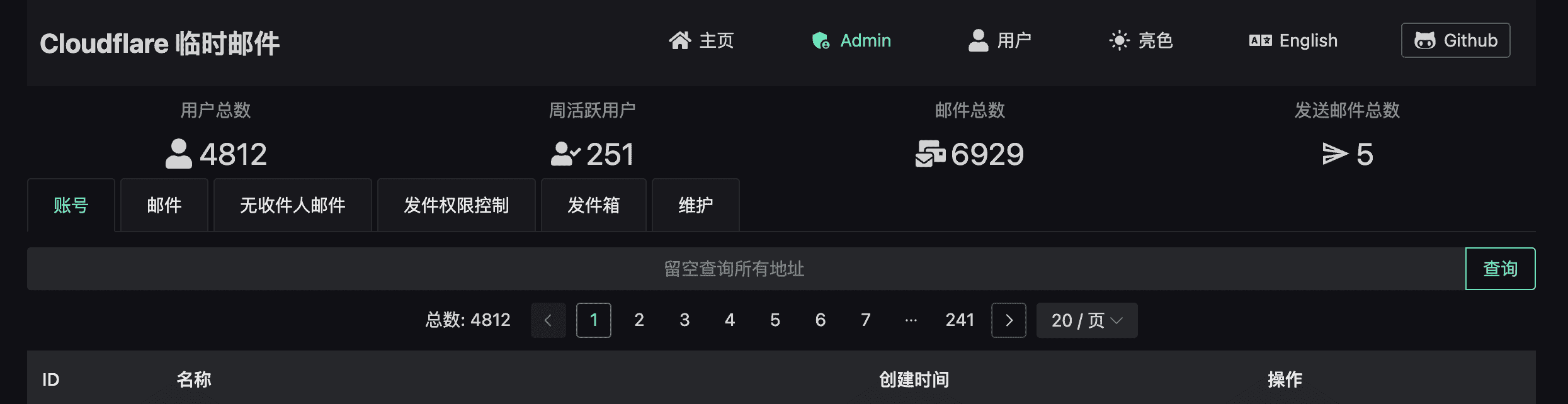
Statistics
The Statistics page shows site-wide totals for received mail, mailboxes, users, and sent mail, plus active mailboxes and users over the last 7 and 30 days. Activity is based on each record's last update time.
Use the date picker to view trends for received and sent mail, mailbox creation, and user registrations. Charts count retained records by UTC date, and custom ranges can span up to 30 days.
Mailbox List Sorting
Admin Console → Mailbox Management → Mailboxes supports column sorting. Click a column header to toggle ascending/descending order for:
- ID
- Email Address
- Created At
- Updated At
- Mail Count
- Send Count
When searching for email addresses, pagination automatically resets to page 1.
If your website is for private access only, you can disable this check
DISABLE_ADMIN_PASSWORD_CHECK = true
IP Blacklist / Whitelist
Configure access control in Admin Console → IP Blacklist Settings. Applies to: create address, send mail, external send mail API, user registration, and verify code endpoints.
IP Whitelist (Strict Mode)
When enabled, only whitelisted IPs can access protected endpoints; all others receive 403.
- Plain entries: exact match (no substring), e.g.
1.2.3.4 - Regex entries: use anchored patterns, e.g.
^192\.168\.1\.\d+$ - Whitelisted IPs skip blacklist checks
- If whitelist is enabled but the list is empty, the server ignores the switch (fail-open to prevent lockout)
IP Blacklist
When enabled, matching IPs receive 403. Supports substring text matching or regex.
ASN Organization Blacklist
Block by ISP/provider name, case-insensitive. Supports text or regex matching.
Browser Fingerprint Blacklist
Block by x-fingerprint request header. Supports exact or regex matching.
Daily Request Limit
Limit the maximum number of requests per IP per day (1–1,000,000). Exceeding the limit returns 429. Counter resets every 24 hours (UTC date boundary).